Colombia
Odoo’s Colombian localization package provides accounting, fiscal, and legal features for databases in Colombia – such as chart of accounts, taxes, and electronic invoicing.
In addition, a series of videos on the subject is also available. These videos cover how to start from scratch, set up configurations, complete common workflows, and provide in-depth looks at some specific use cases as well.
Configuración
Instalación de módulos
Instale los siguientes módulos para obtener todas las funciones de la localización de Colombia:
Nombre |
Nombre técnico |
Descripción |
|---|---|---|
Colombia - Contabilidad |
|
Default fiscal localization package. This module adds the base accounting features for the Colombian localization: chart of accounts, taxes, withholdings, and identification document type. |
Colombia - Reportes contables |
|
Incluye los reportes de contabilidad al enviar certificaciones a proveedores por retenciones aplicadas. |
Facturación electrónica para Colombia con Carvajal |
|
This module includes the features required for integration with Carvajal, and generates the electronic invoices and support documents related to the vendor bills, based on DIAN regulations. |
Colombia - Punto de venta |
|
Includes Point of Sale receipts for Colombian localization. |
Nota
When Colombia is selected for a company’s Fiscal Localization, Odoo automatically
installs certain modules.
Configuración de la empresa
To configure your company information, go to the app, and search for your company.
Alternatively, activate developer mode and navigate to . Then, edit the contact form and configure the following information:
Nombre de la empresa.
Address: Including City, Department and ZIP code.
Identification Number: Select the Identification Type (
NIT,Cédula de Ciudadanía,Registro Civil, etc.). When the Identification Type isNIT, the Identification Number must have the verification digit at the end of the ID prefixed by a hyphen (-).
Después, configure la Información fiscal en la pestaña Venta y compra:
Obligaciones y Responsabilidades: Select the fiscal responsibility for the company (
O-13Gran Contribuyente,O-15Autorretenedor,O-23Agente de retención IVA,O-47Regimen de tributación simple,R-99-PNNo Aplica).Gran Contribuyente: debe seleccionar esta opción si la empresa es un gran contribuyente.
Fiscal Regimen: Select the Tribute Name for the company (
IVA,INC,IVA e INC, orNo Aplica)Nombre comercial: si la empresa usa un nombre comercial específico que necesita mostrarse en la factura.
Configuración de las credenciales de Carvajal
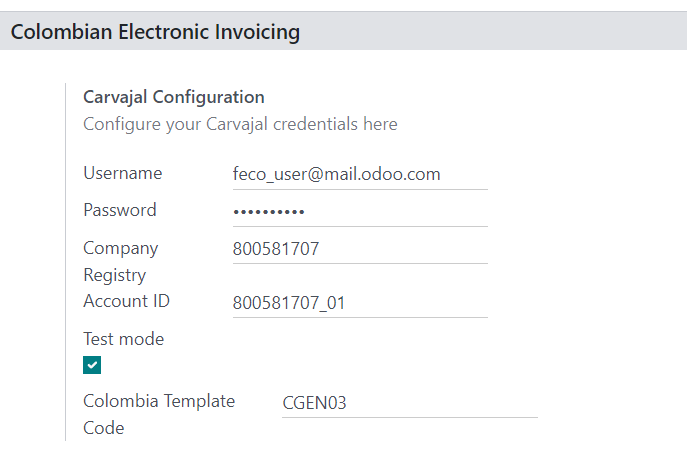
Once the modules are installed, the user credentials must be configured, in order to connect with Carvajal Web Service. To do so, navigate to and scroll to the Colombian Electronic Invoicing section. Then, fill in the required configuration information provided by Carvajal:
Username and Password: Username and password (provided by Carvajal) to the company.
Registro de la empresa: número NIT de la empresa sin el código de verificación.
Account ID: Company’s NIT number followed by
_01.Colombia Template Code: Select one of the two available templates (
CGEN03orCGNE04) to be used in the PDF format of the electronic invoice.
Enable the Test mode checkbox to connect with the Carvajal testing environment.
Once Odoo and Carvajal are fully configured and ready for production, deactivate the Test mode checkbox to use the production database.
Importante
Test mode must only be used on duplicated databases, not the production environment.
Configuración de los datos del reporte
Es posible definir los datos del reporte para la sección fiscal y la información bancaria del PDF como parte de la información configurable que se envía en el XML.
Navigate to , and scroll to the Colombian Electronic Invoicing section, in order to find the Report Configuration fields. Here the header information for each report type can be configured.
Gran Contribuyente
Tipo de Régimen
Retenedores de IVA
Autorretenedores
Resolución Aplicable
Actividad Económica
Bank Information
Configuración de los datos maestros
Cliente/Proveedor
Partner contacts can be created in the Contacts app. To do so, navigate to , and click the Create button.
Then, name the contact, and using the radio buttons, select the contact type, either Individual or Company.
Complete the full Address, including the City, State, and ZIP code. Then, complete the identification and fiscal information.
Información de identificación
Identification types, defined by the DIAN, are available on the partner form, as part of the Colombian localization. Colombian partners must have their Identification Number (VAT) and Document Type set.
Truco
When the Document Type is NIT, the Identification Number needs to be
configured in Odoo, including the verification digit at the end of the ID, prefixed by a hyphen
(`-`).
Información fiscal
The partner’s responsibility codes (section 53 in the RUT document) are included as part of the electronic invoicing module, as it is required by the DIAN.
The required fields can be found under :
Obligaciones y Responsabilidades: Select the fiscal responsibility for the company (
O-13Gran Contribuyente,O-15Autorretenedor,O-23Agente de retención IVA,O-47Regimen de tributación simple, orR-99-PNNo Aplica).Gran Contribuyente: debe seleccionar esta opción si la empresa es un gran contribuyente.
Fiscal Regimen: Select the tribute name for the company (
IVA,INC,IVA e INC, orNo Aplica)Nombre comercial: si la empresa usa un nombre comercial específico que necesita mostrarse en la factura.
Productos
To manage products, navigate to , then click on a product.
When adding general information on the product form, it is required that either the UNSPSC Category (Accounting tab), or Internal Reference (General Information tab) field is configured. Be sure to Save the product once configured.
Impuestos
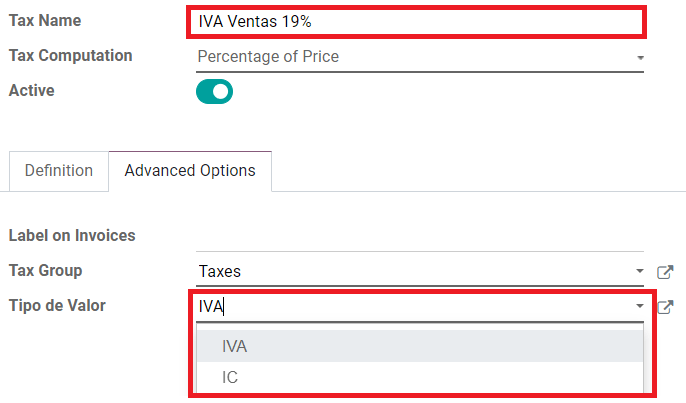
To create or modify taxes, go to , and select the related tax.
If sales transactions include products with taxes, the Value Type field in the Advanced Options tab needs to be configured per tax. Retention tax types (ICA, IVA, Fuente) are also included. This configuration is used to display taxes correctly in the invoice PDF.
Diarios de ventas
Once the DIAN has assigned the official sequence and prefix for the electronic invoice resolution, the sales journals related to the invoice documents must be updated in Odoo. To do so, navigate to , and select an existing sales journal, or create a new one with the Create button.
On the sales journal form, input the Journal Name, Type, and set a unique Short Code in the Journals Entries tab. Then, configure the following data in the Advanced Settings tab:
Facturación electrónica: habilite UBL 2.1 (Colombia).
Resolución de facturación: el número de resolución que emitió el DIAN para la empresa.
Fecha de resolución: la fecha efectiva inicial de la resolución.
Fecha de finalización de la resolución: la fecha de finalización de la validez de la resolución.
Rango de numeración (mínimo): el primer número de factura autorizado.
Rango de numeración (máximo): el último número de factura autorizado.
Nota
The sequence and resolution of the journal must match the one configured in Carvajal and the DIAN.
Secuencia de facturación
The invoice sequence and prefix must be correctly configured when the first document is created.
Nota
Odoo automatically assigns a prefix and sequence to the following invoices.
Diarios de compra
Once the DIAN has assigned the official sequence and prefix for the support document related to vendor bills, the purchase journals related to their supporting documents need to be updated in Odoo. The process is similar to the configuration of the sales journals.
Plan contable
The chart of accounts is installed by default as part of the localization module. The accounts are mapped automatically in taxes, default account payable, and default account receivable. The chart of accounts for Colombia is based on the PUC (Plan Unico de Cuentas).
Flujos de trabajo principales
Facturas electrónicas
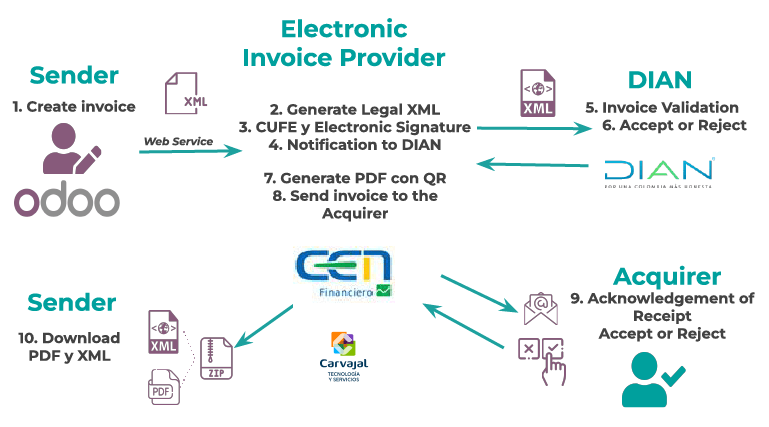
The following is a breakdown of the main workflow for electronic invoices with the Colombian localization:
Sender creates an invoice.
Electronic invoice provider generates the legal XML file.
Electronic invoice provider creates the CUFE (Invoice Electronic Code) with the electronic signature.
Electronic invoice provider sends a notification to DIAN.
DIAN validates the invoice.
DIAN accepts or rejects the invoice.
Electronic invoice provider generates the PDF invoice with a QR code.
Electronic invoice provider sends invoice to the acquirer.
Acquirer sends a receipt of acknowledgement, and accepts or rejects the invoice.
Sender downloads a
.zipfile with the PDF and XML.
Creación de Facturas
Nota
The functional workflow taking place before an invoice validation does not alter the main changes introduced with the electronic invoice.
Electronic invoices are generated and sent to both the DIAN and customer through Carvajal’s web service integration. These documents can be created from your sales order or manually generated. To create a new invoice, go to , and select Create. On the invoice form configure the following fields:
Cliente: la información del cliente.
Diario: el diario que se utiliza para las facturas electrónicas.
Tipo de factura electrónica: seleccione el tipo de documento. La selección predeterminada es Factura de venta.
Líneas de la factura: especifique los productos con los impuestos correctos.
Al terminar, haga clic en confirmar.
Validación de Factura
Una vez que se confirma la factura, se creará un archivo XML que se enviará automáticamente a Carvajal. Después, el servicio de facturación electrónica UBL 2.1 (Colombia) procesará la factura de forma asíncrona. También podrá ver el archivo en el chatter.
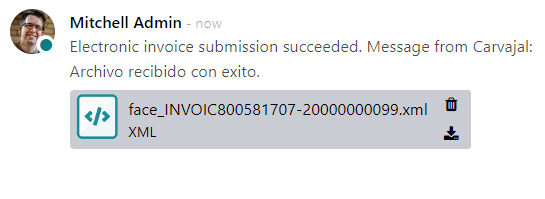
The Electronic Invoice Name field is now displayed in the EDI Documents tab, with the name of the XML file. Additionally, the Electronic Invoice Status field is displayed with the initial value In progress, which is located in the invoice header.
Recepción de XML y PDF legales
The electronic invoice vendor (Carvajal) receives the XML file, and proceeds to validate its structure and information.
The electronic invoice status can be checked in the Action menu, by clicking the Check Carvajal Status button. The Electronic Invoice Status field value changes to Validated, if everything is correct.
Then, proceed to generate a legal XML, which includes a digital signature and a unique code (CUFE), and a PDF invoice that includes a QR code, along with the previously-generated CUFE code.
A .zip containing the legal electronic invoice (in XML format) and the invoice in (PDF
format) is downloaded and displayed in the invoice chatter:
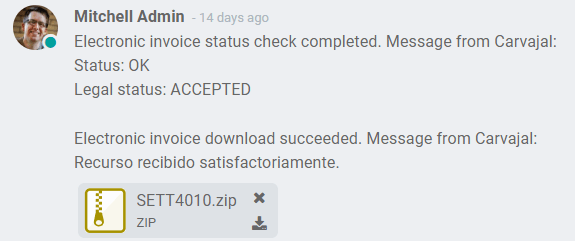
El estado de la factura electrónica cambia a aceptado.
Notas de crédito
The process for credit notes is the same as for invoices. To create a credit note with reference to an invoice, go to . On the invoice, click Add Credit Note, and complete the following information:
Método de crédito: seleccione el tipo de método de crédito.
Reembolso parcial: utilice esta opción cuando se trate de un importe parcial.
Reembolso completo: utilice esta opción cuando se trate de un importe total.
Reembolso completo y nuevo borrador de factura: utilice esta opción si la nota de crédito se autovalida y concilia con la factura. La factura original se duplica como un nuevo borrador.
Motivo: escriba el motivo de la nota de crédito.
Fecha de reversión: indique si desea una fecha específica para la nota de crédito o si se usará la fecha del asiento.
Utilizar diario específico: seleccione el diario a usar para su nota de crédito o déjelo vacío si desea utilizar el mismo diario que la factura original.
Fecha de reembolso: si eligió la opción fecha específica, seleccione la fecha para el reembolso.
Una vez revisado, haga clic en el botón Revertir.
Notas de débito
The process for debit notes is similar to credit notes. To create a debit note with reference to an invoice, go to . On the invoice, click the Add Debit Note button, and enter the following information:
Motivo: escriba el motivo de la nota de débito.
Fecha de la nota de débito: seleccione las opciones específicas.
Copiar líneas: seleccione esta opción si necesita registrar una nota de débito con las mismas líneas de la factura.
Utilizar diario específico: seleccione el punto de impresión para su nota de débito, o déjelo vacío si desea utilizar el mismo diario que la factura original.
Al finalizar, haga clic en crear nota de débito.
Documento soporte para las facturas de proveedor
With master data, credentials, and the purchase journal configured for support documents related to vendor bills, you can start using support documents.
Puede crear los documentos soporte para las facturas de proveedor desde las órdenes de compra o de forma manual. Vaya a y complete los siguientes datos:
Proveedor: complete la información del proveedor.
Fecha de factura: seleccione la fecha de la factura.
Diarios: seleccione el diario para los documentos soporte relacionados a las facturas de proveedor.
Líneas de factura: especifique los productos con los impuestos correspondientes.
Una vez revisado, haga clic en el botón confirmar. Después de confirmar se creará un archivo XML que se enviará de forma automática a Carvajal.
Errores comunes
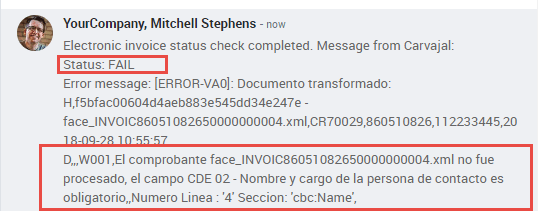
Durante la validación de XML, los errores más comunes suelen estar relacionados con falta de datos maestros (NIF del contacto, Dirección, Productos, Impuestos). En estos casos, se mostrará un mensaje de error en el chatter después de actualizar el estado de la factura electrónica.
Después de corregir los datos maestros es posible volver a procesar el XML con los nuevos datos y enviar la versión actualizada si usa el botón de acción.
Reportes financieros
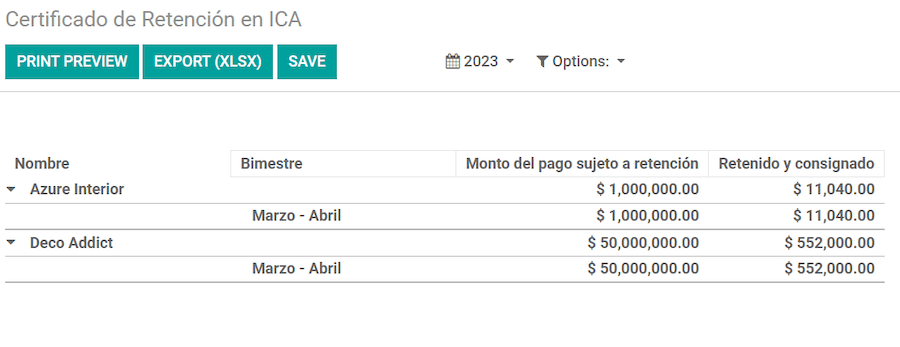
Certificado de retención en ICA
Este reporte es una certificación para los proveedores por las retenciones efectuadas por concepto del impuesto de Industria y Comercio colombiano (ICA). El reporte se encuentra en .
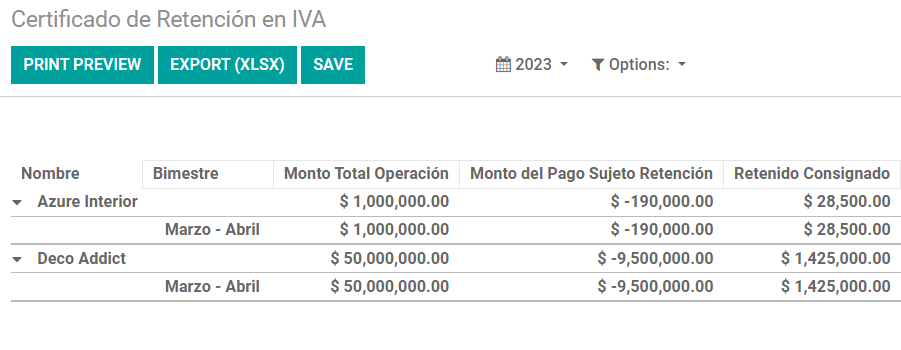
Certificado de retención en IVA
Este reporte emite un certificado sobre el monto retenido a los proveedores por concepto de retención de IVA. El reporte se encuentra en .
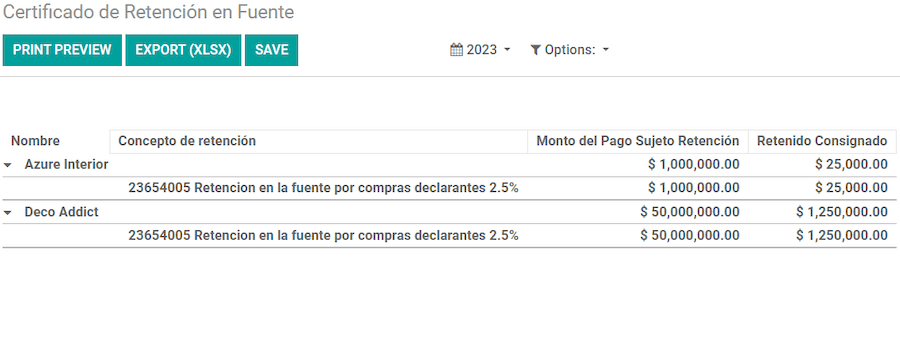
Certificado de retención en la Fuente
Este certificado se emite a los partners por las retenciones de impuestos que han efectuado. El reporte se encuentra en .